
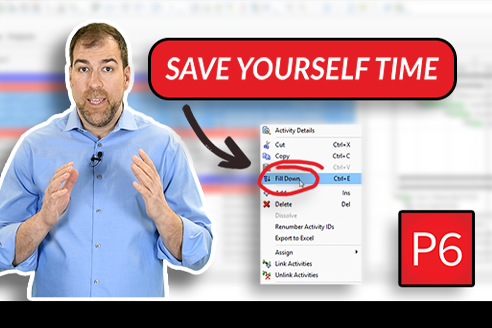
If you’ve ever used Excel, you already understand the idea behind Fill Down: set a value once, then copy it quickly to a bunch of rows. In Primavera P6, Fill Down does the same thing – and it’s one of those small features that can save you a surprising amount of time when you’re working on real schedules.
In this tutorial, you’ll learn how to use Fill Down in a few high-impact places: activity calendars, WBS-related fields, resource assignments, and cost values.
What “Fill Down” does in P6
Fill Down copies the value from the first selected cell into the cells below it (within the same column/field). Instead of clicking activity-by-activity and repeating the same change, you make the change once, select the range, and apply Fill Down.
You can run Fill Down in two ways:
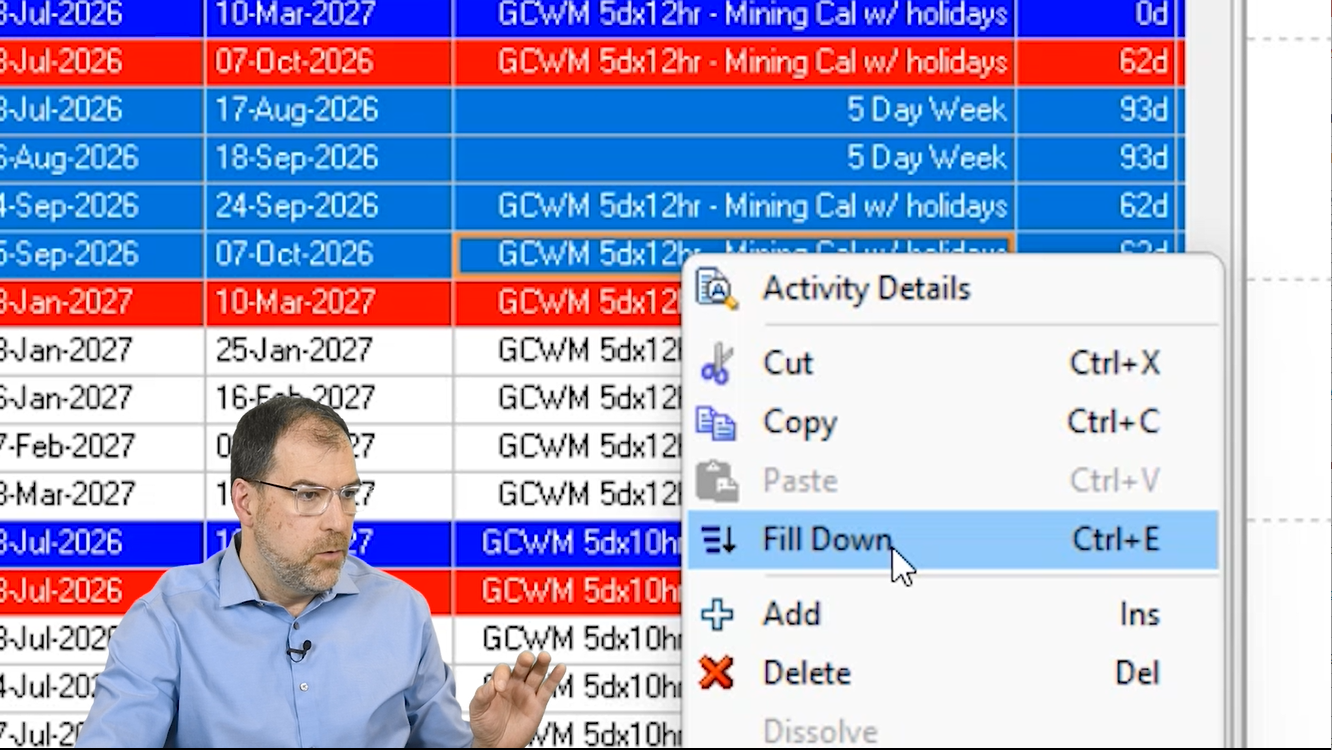
- Right-click menu: Right-click and choose Fill Down (when available)
- Keyboard shortcut: Ctrl + E (works even when the right-click option doesn’t show)
Example 1: Fill Down calendars across many activities
One of the best uses of Fill Down is changing calendars across a large set of activities.
Step-by-step
- In your Activities view, find the Calendar
- Change the calendar on the first activity (for example, switch from a mining calendar to a 5-day work week calendar).
- Select the rest of the cells you want to update:
- Click the first updated cell
- Hold Shift
- Click the last cell in that same column
- Confirm you’re in the right column (you’ll see a highlighted bar indicating the active column).
- Apply Fill Down:
- Right-click ? Fill Down, or
- Press Ctrl + E
P6 will copy that calendar value down through the selected activities.
Important gotcha: WBS bars don’t “have” calendars
After you Fill Down calendars, you might notice something confusing: your WBS bars may still look like they’re showing the old calendar.
This is a super common question, and here’s the key:
- WBS bars only summarize the data below them
- WBS elements do not have calendars
So what you’re seeing is usually just a display/summary that hasn’t refreshed yet.
Fix it: Refresh the data
To update the WBS display:
- Go to File ? Refresh Data, or
- Press F5
After refreshing, your WBS bars should reflect the updated activity data.
Example 2: Fill Down for WBS-related fields (and other columns)
Fill Down isn’t limited to calendars. You can use it on many fields in your schedule grid.
Step-by-step
- Enter or change the value in the first cell.
- Hold Shift and select the range of cells below.
- Use Ctrl + E (or the Edit menu if you prefer).
This is especially useful when you’re standardizing fields across a section of the schedule.
Example 3: Fill Down in the bottom pane (Resources)
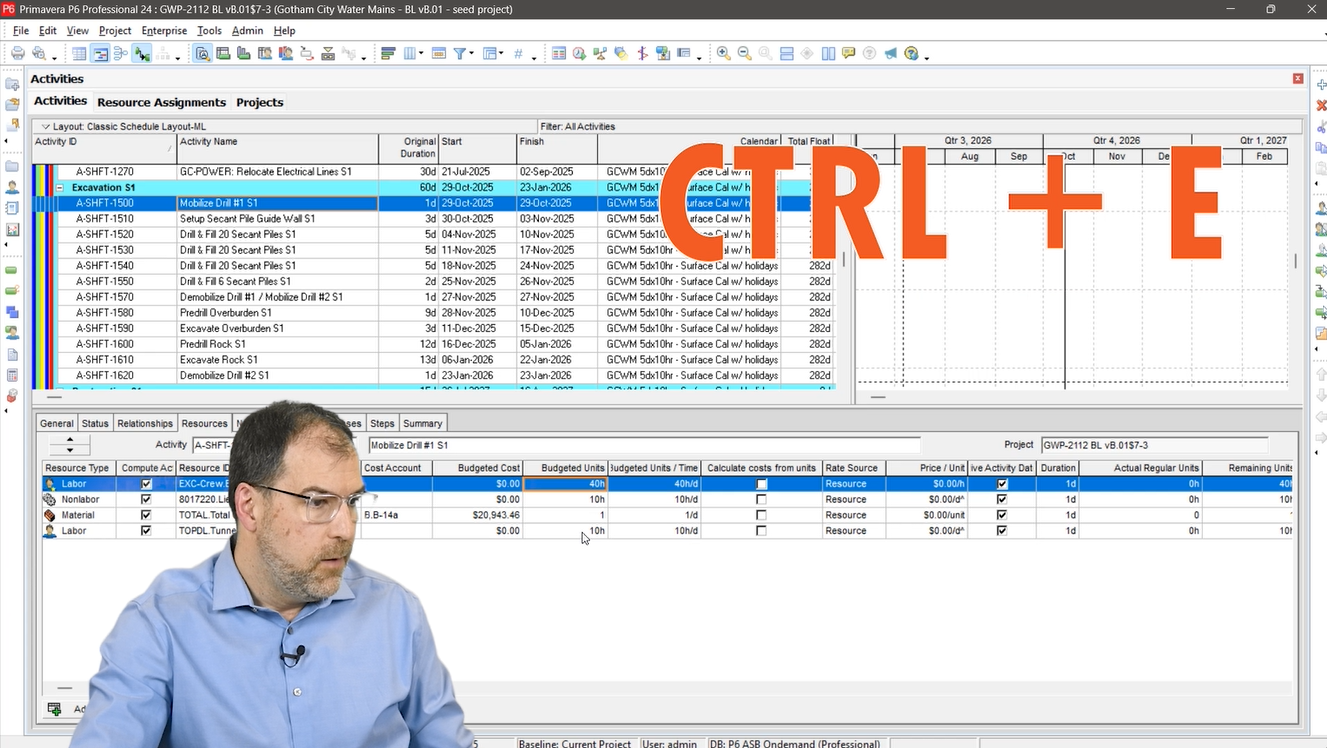
Fill Down also works in the bottom half of the screen, including resource-related tables.
For example, if you have multiple resources assigned and you want to copy a value (like 40 units) down to the rest:
- Enter the value (e.g., 40 units) on the first resource row.
- Hold Shift and select the remaining rows.
- Press Ctrl + E.
Note: In some resource tables, Fill Down may not appear in the right-click menu. That’s where the shortcut becomes your best friend.
Example 4: Fill Down in Resource Assignments (including costs)
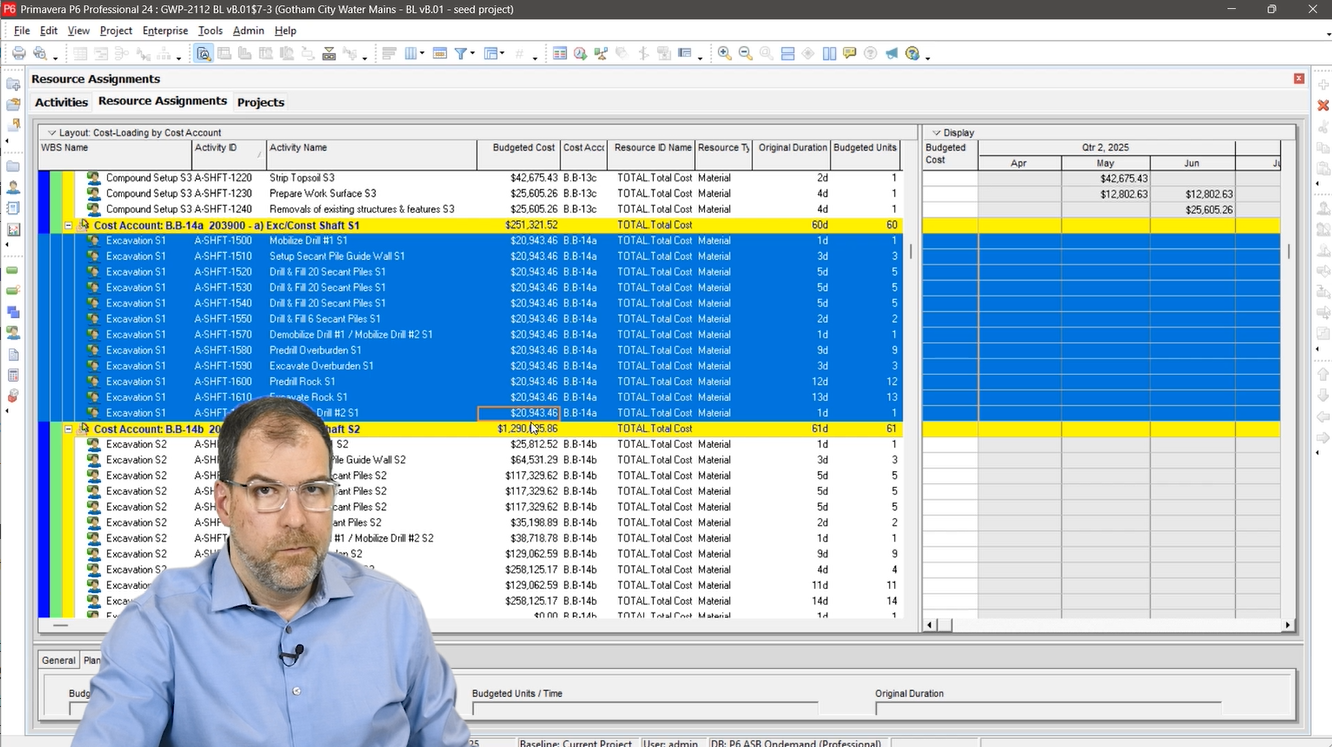
Another powerful place to use Fill Down is the Resource Assignments screen – especially when you’re trying to make values consistent.
If you have a column like Budgeted Cost and you want the same value copied down across multiple assignments:
- Set the correct value in the first row.
- Select the range (Shift + click).
- Press Ctrl + E to Fill Down.
This is a fast way to clean up inconsistencies when you’re working with large datasets.
How to undo a Fill Down
Made a change too aggressively? No stress.
You can undo Fill Down using:
- Edit ? Undo Fill Down, or
- Ctrl + Z
Quick recap
Here’s the cheat sheet:
- Fill Down shortcut: Ctrl + E
- Undo: Ctrl + Z
- Refresh WBS display: F5 (or File ? Refresh Data)
- Best uses: Calendars, standardizing fields, resource units, budgeted cost values
Want more Primavera P6 shortcuts like this?
Fill Down is one of those features that feels small – until you use it on a real schedule and save yourself 20 minutes of clicking. Try it in your own project, and keep Ctrl + E in your back pocket.

